WordPress for Nonprofits: What Your Site Needs, and What It Does Not
connectNPO · Updated September 2026
Key takeaways
- WordPress itself is free software under the GPL license, and W3Techs counts it on 40.2% of all websites. For a nonprofit, the question is less whether to use WordPress than how much to add to it.
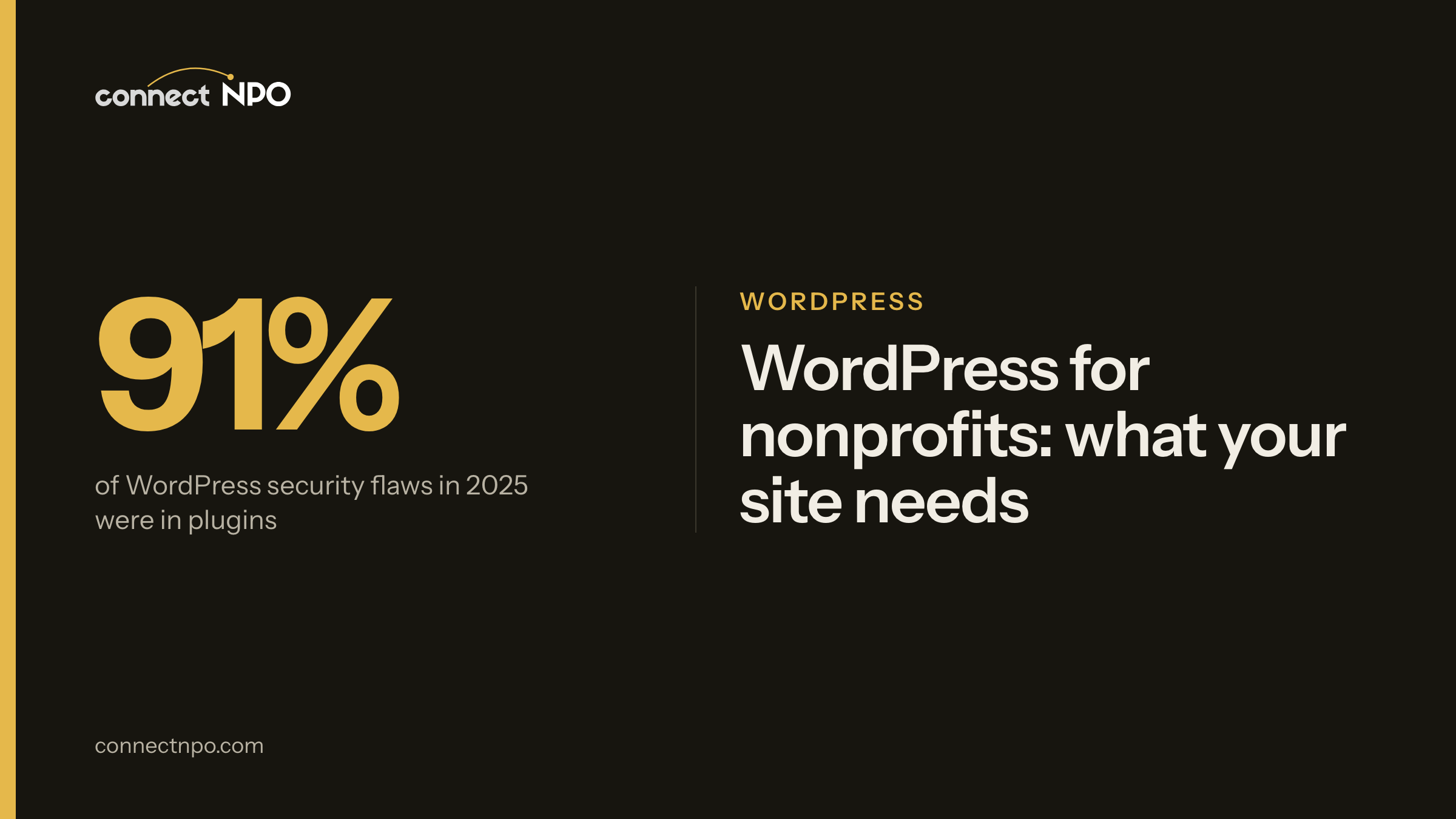
- The risk sits in the add-ons. Patchstack counted 11,334 new WordPress security flaws in 2025: 91% of them in plugins and 9% in themes, against just 6 flaws in WordPress itself. Each plugin you add is one more thing to keep updated.
- A nonprofit WordPress site needs a few things done well: its own pages, a donation link to the processor you use, forms, events that expire, a financials page, search basics, backups and updates. It does not need a plugin for every idea.
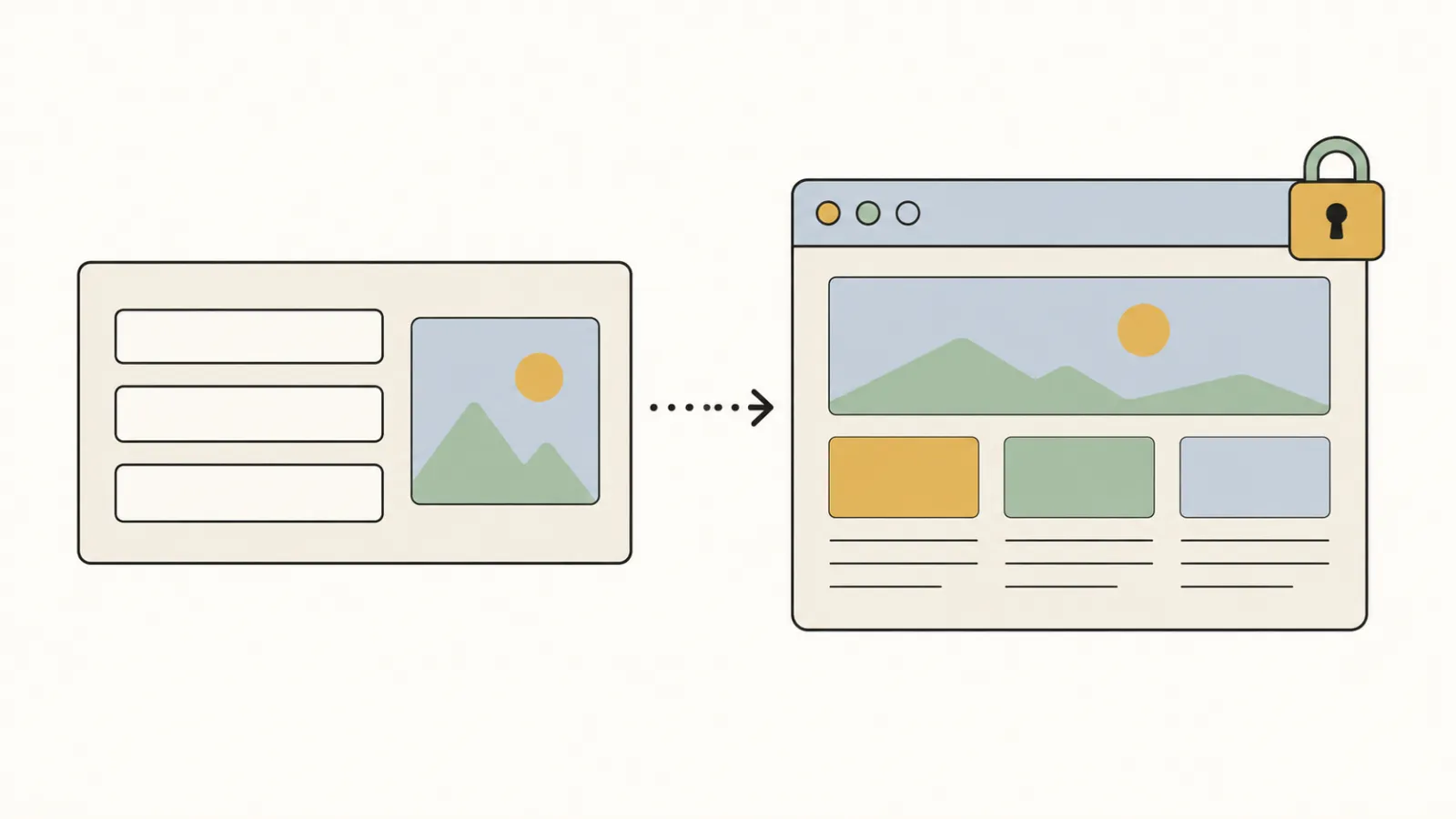
- Staff should edit content in simple fields, such as an event’s date, time and place, and never move the design. On connectNPO’s sample sites, staff fill in fields and the page lays itself out.
- Own what you run. Keep the domain in your organization’s name, and prefer free plugins, so that the site keeps working if you change who looks after it. connectNPO sites are built to run on WordPress and free plugins.
A board member says the site should be on WordPress. A volunteer who built one once agrees. Then the questions start: which theme, which plugins, who logs in, and what happens when the person who set it up moves on. The software is not the hard part here; the decisions around it are.
This guide covers WordPress for nonprofits from that side: what a small nonprofit’s site needs, what it can do without, and who looks after it. The examples come from connectNPO’s sample sites, which run on WordPress and can be opened and pressed.
Is WordPress a good choice for a nonprofit website?
Yes, WordPress is a sound choice for a nonprofit website, if the site is kept small. WordPress itself is free software, released under the GPL license. What decides whether it stays easy and safe is how many plugins it carries, who applies updates, and whether staff can edit content without moving the design.
It is not a niche tool. W3Techs counts WordPress on 40.2% of all websites, and on 58.8% of the sites whose content management system it can identify (read September 22, 2026). That scale is also why the risk discussed below comes from what gets added to WordPress, not from WordPress itself.
WordPress.org and WordPress.com are not the same thing
Before comparing price quotes or plugins, it helps to know which WordPress is meant, because the name covers two different things.
WordPress.org is the free software. You, or whoever builds the site, install it on hosting you choose, and you can add any theme or plugin. WordPress.com is a hosted service run by a company, with its own plans and its own limits on what can be added. Both are legitimate. This guide is about the first, the self-installed kind, because that is the one where the choices below are yours to make.
Where the risk sits: add-ons, not WordPress
A house is only as secure as its least careful tenant. On a WordPress site, the tenants are the plugins and the theme, each written by a different developer.
Patchstack’s State of WordPress Security in 2026 counted 11,334 new security flaws found across the WordPress ecosystem in 2025. Plugins accounted for 91% of them and themes for 9%; WordPress’s own core code had just 6 flaws in the whole year. For 46% of the flaws, no fix existed yet when the problem became publicly known, so a site running that plugin could be exposed before any fix was available.
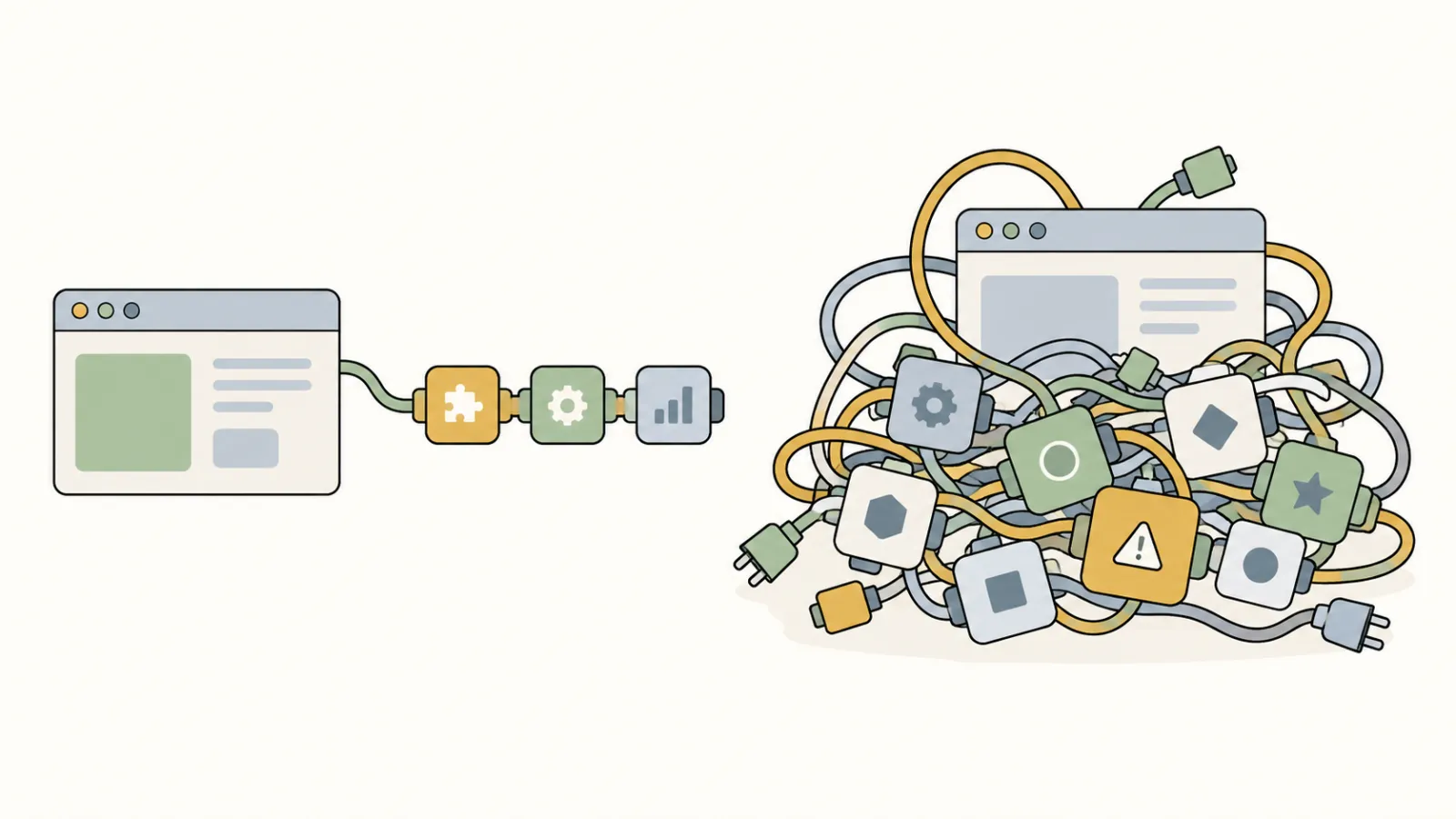
The practical reading is simple. Fewer plugins means fewer places a flaw can appear and fewer updates to apply. Choosing plugins is a security decision, not only a feature decision.
What a nonprofit WordPress site needs
Strip a nonprofit website down to its jobs and the list is short. Each job needs one tool that does it well.
| The site needs | What handles it | See it on a sample |
|---|---|---|
| Your own pages | A theme built for your site, not a multipurpose theme with dozens of demo layouts | All eight sample sites run on a theme built for them |
| A way to give | A link or form to the payment processor you already use | The give panel on every sample |
| Forms that send somewhere | One form tool; answers stored and emailed | The Harborlight enrollment form, in demo mode (it shows the form; nothing is sent) |
| Events that expire | An event type with a date; past events drop off | Harborlight Shows |
| A financials page | Your filings listed with their year and size | The financials on every sample |
| Search basics | Titles, descriptions and organization details for search engines | The Harborlight search preview |
| Backups and updates | A schedule, and a person who applies them | In the connectNPO plan: backups at least weekly |
A few rows in that table are not software to install at all; they are pages the site needs, written once and kept current. For the full list of what a nonprofit site should carry, see what should be on a nonprofit website; for how an impact page counts its numbers, see nonprofit impact report examples; for a give panel you can press, see donation page examples.
What it does not need
Knowing what to leave out is where WordPress sites stay light. Each of these four has a cost that arrives later.
A page builder for staff
A page builder lets staff drag and resize blocks on the page, which is how a design gets knocked out of place. Staff are better served by simple fields, such as a date or a name, while the layout stays fixed.
A plugin for every idea
Each one is another developer’s code to keep updated. Add one only when a page needs it.
Paid licences you cannot keep
If the site depends on a licence someone else holds, it can stop updating the day you part ways.
A theme with dozens of demo layouts
You use one layout. The rest are code you still carry and update.
connectNPO builds and keeps nonprofit WordPress sites
We apply the updates, run the backups and make your changes. The site runs on WordPress and free plugins, and it is yours to take with you. One plan, $180 a month.
The screen your staff should see
A kitchen runs better with a few good knives than a drawer of gadgets. The same is true of the screen a staff member opens to change the website.
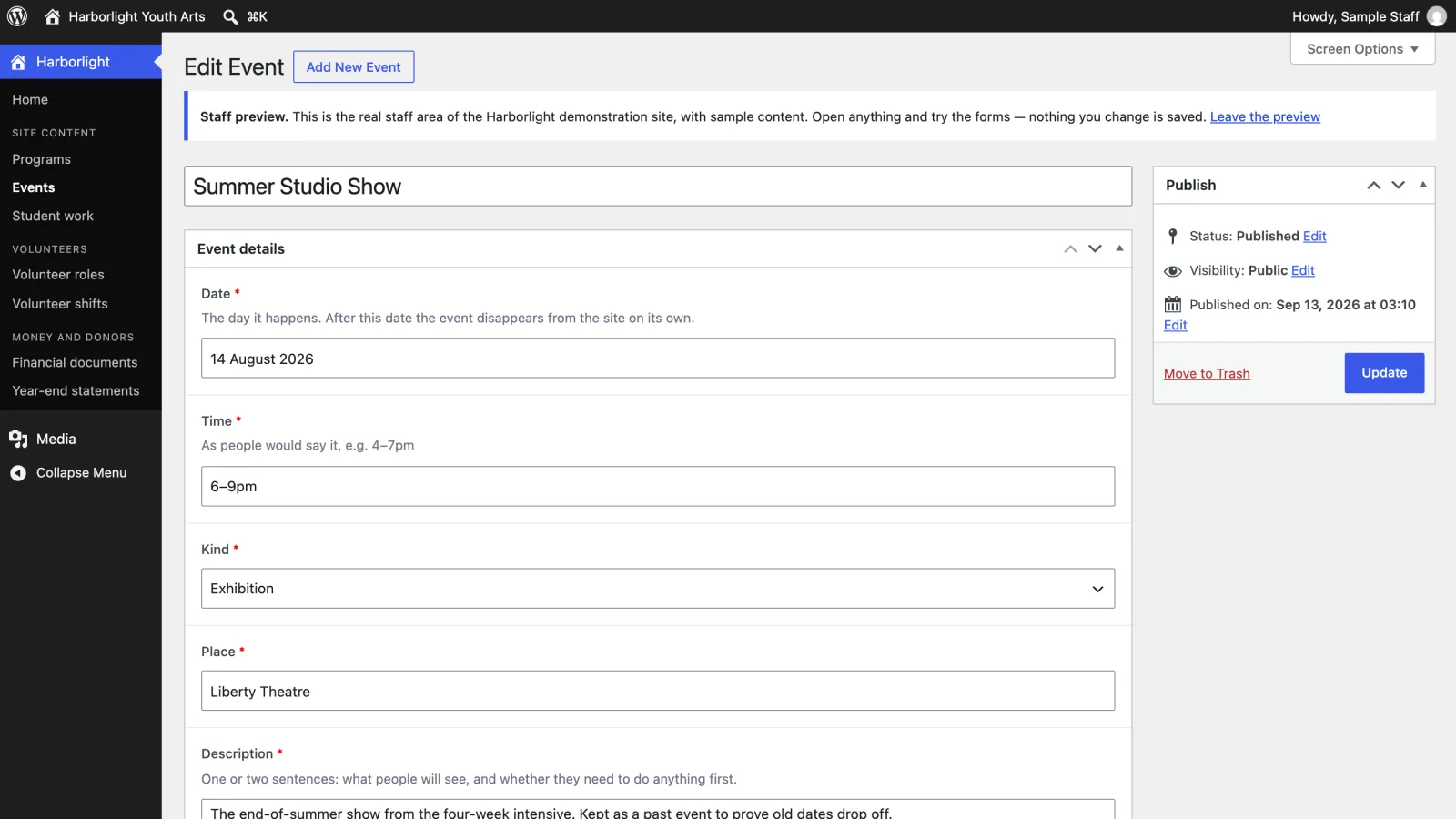
On the Harborlight sample site, a staff member does not see the page design at all. To add an event, they open Events, fill in the date, time, kind and place, and press Publish. The page lays the event out, and it drops off the site by itself once its date has passed. The fields are made with the free Advanced Custom Fields plugin.
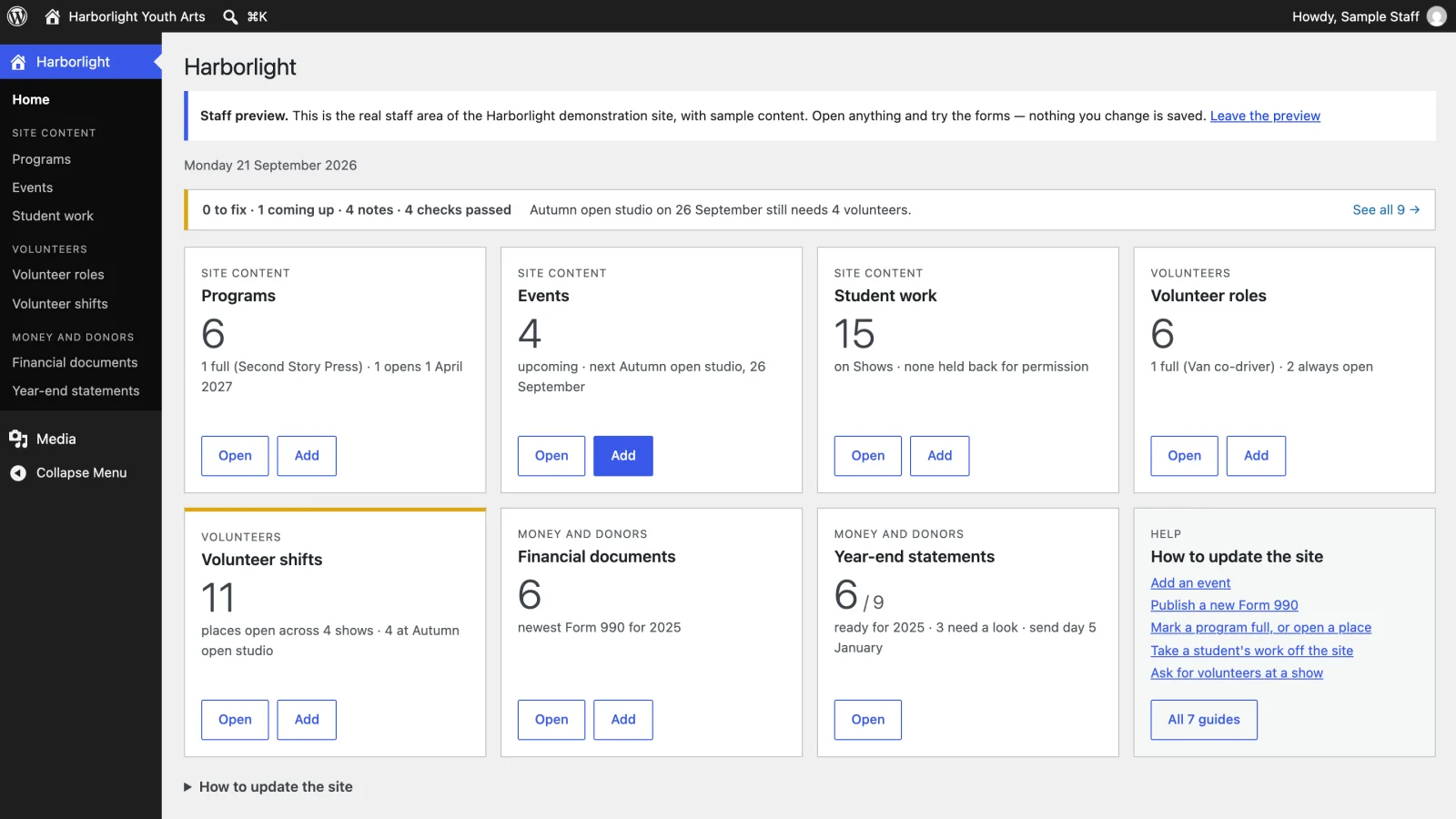
The rest of the staff menu follows the same idea: one menu with the organization’s own name, a tile for each kind of content, and little else. You can open it yourself from the demo tour on the Harborlight sample; nothing you change there is saved.
Who keeps it updated
Updates work like oil changes: skipping one does not show the same week, and each one skipped makes the next repair bigger.
WordPress does some of this by itself. According to the WordPress documentation, new installations since version 5.6 apply updates to WordPress itself automatically by default. By default, plugins and themes are updated automatically only in special cases, when the WordPress security team pushes a fix for a critical flaw, unless someone switches on automatic updates for them. The rest waits for a person.
That person needs a regular routine, not one long catch-up session once a year; the list below breaks it into small pieces. A short list you actually run beats a perfect one you avoid.
If no one on your team has that time, it is worth pricing. Our own breakdown of the parts is in how much a nonprofit website costs each year.
Owning it if you ever leave
The last question to ask before choosing who builds your site is what happens if you stop working with them. Two things decide the answer.
The first is the domain. It should be registered in your organization’s name, so that moving the site never depends on someone else’s account. The second is the software. If the site depends on a paid theme or plugin licensed to the builder, it can stop receiving updates when that relationship ends.
Our own service agreement states it plainly: “There is no paid software to buy: your site is built to run on WordPress and free plugins, so nothing stops working and no licence of ours has to be replaced.” The domain stays registered in your organization’s name, and after twelve monthly payments the site leaves with you at no charge. Whoever you hire, ask for the same answers in writing.
Frequently asked questions
Is WordPress good for nonprofits?
It can be. WordPress itself is free under the GPL license and runs a large share of the web. What makes a nonprofit WordPress site easy or hard is how many plugins it carries, who applies the updates, and whether staff can change content without touching the design.
Is WordPress free for nonprofits?
The WordPress software is free for anyone. Hosting, a domain and any paid themes or plugins cost money, and so does the time to keep it updated. A site built on free plugins has no licences to renew.
How many plugins does a nonprofit website need?
As few as the site needs to do its job. Each plugin is code from another developer that has to be kept updated. Patchstack found that 91 percent of new WordPress security flaws in 2025 were in plugins.
Does WordPress update itself?
Partly. The WordPress documentation says new installations since version 5.6 update WordPress itself automatically by default, while plugins and themes are updated automatically by default only in special cases for critical security fixes, unless someone switches that on. Someone still has to apply the rest.
Can staff update a WordPress site without breaking the design?
Yes, if the site is built that way. On the connectNPO sample sites, staff fill in fields such as an event date, time and place, and the page lays itself out, so there is no design for them to move.
See your finished website before you pay for it.
Built on WordPress and free plugins, kept updated for you. You pay nothing until you approve the finished site; the first payment is then $1,180 (the build fee plus the first month), and $180 a month after that.
See the plan and apply →Figures from W3Techs and Patchstack were read on September 22, 2026. The sample sites belong to invented organizations built by connectNPO. This guide is general information, not legal advice.